
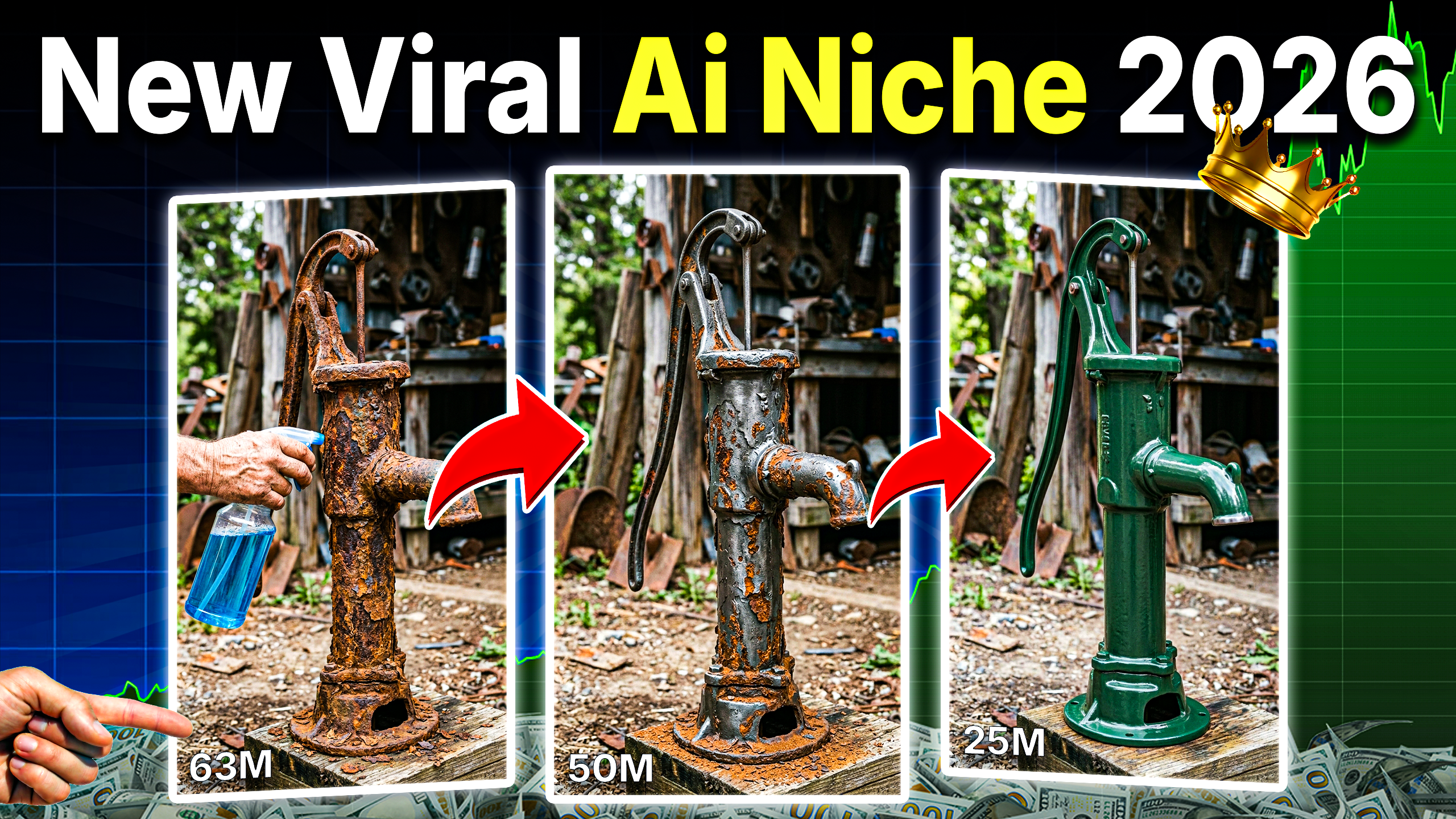
Have you seen those oddly satisfying videos on TikTok and Instagram where a laser or a chemical bath peels away thick layers of rust from an old object? They rack up millions of views and massive engagement.
The secret is out: You don’t need a rusty engine or an expensive laser. Today, I’m going to show you exactly how to create these hyper-realistic rust-cleaning videos using 100% free AI tools. We’ll be using a “Master Prompt” strategy to automate the creative process, ensuring your physics look real and your visuals look cinematic.
The Secret Sauce: Why Rust Cleaning Videos Go Viral
Before we dive into the tutorial, let’s look at why this works. These videos trigger a psychological response called ASMR (Autonomous Sensory Meridian Response). Watching something go from “dirty and broken” to “shiny and new” provides a sense of closure and satisfaction.
By using AI, you can create scenarios that are impossible in real life—like cleaning a rusted gold crown found in an underwater shipwreck or a futuristic robot arm.
Step 1: The Master Prompt (Your AI Creative Director)
The most difficult part of AI video generation is getting the “physics” right. If you just ask an AI to “clean rust,” it might look like a cheap filter. My Master Prompt tells the AI to treat the rust as a physical layer with depth, texture, and light reflection.
Rust Cleaning Master Prompt:
How to use it:
- Copy the prompt above.
- Head over to ChatGPT.
- Paste and run it.
ChatGPT will now give you a list of 20 random, high-potential objects. For this tutorial, let’s say we chose Object No. 10 (e.g., a rusted vintage diver’s helmet). Simply reply with “10,” and it will give you your custom image and video prompts.
Step 2: Generating the “Before” Image with Flow AI
To make a video look realistic, we need a high-quality base image. For this, we use Flow AI because of its precision and free access to top-tier models.
- Open Flow AI and start a New Project.
- Settings: Select Portrait Mode (9:16)—this is essential for Shorts, Reels, and TikTok.
- Model: Choose Nano Banana 2. This model is world-class for textures like rust and metallic glints.
- The Action: Copy the “Image Prompt” provided by ChatGPT, paste it into the generation box, and hit Create.
Pro Tip: Look for the image that has the most “grit.” The more detailed the rust looks in the image, the more satisfying the “clean” will look in the video.
Step 3: Animating the Cleaning Process with Grok AI
Now that we have our stunning “Before” photo, we need to bring it to life. This is where the magic happens.
- Go to Grok AI and select the Imagine/Video feature.
- Upload: Upload the image you just downloaded from Flow AI.
- Prompting: Go back to ChatGPT and copy the Video Prompt. This prompt contains the instructions for the laser movement and the “reveal” of the shiny metal underneath.
- Final Specs: Ensure your aspect ratio is set to 9:16 and click Generate.
Step 4: Upscaling and Final Touches
AI video tools sometimes export at a lower bitrate to save processing power. To make your video truly “viral-ready,” you should upscale it.
- Use a free tool like CapCut or an AI Upscaler to boost the resolution to 4K.
- Add Sound: This is 50% of the experience! Add “Sizzling,” “Laser humming,” or “Mechanical clicking” sounds.
- Captioning: Use a simple overlay like “Wait for the shine…” to increase watch time.
Why This Method is Better Than Traditional Editing
| Feature | Traditional CGI | Our AI Method |
| Cost | Thousands of dollars | $0 (Free Tools) |
| Time | Days of rendering | 5-10 Minutes |
| Skill Level | Professional Animator | Complete Beginner |
| Realism | Depends on artist | Hyper-realistic Physics |
Conclusion
Creating viral content doesn’t require a Hollywood studio anymore. By combining the logic of ChatGPT, the artistic power of Flow AI, and the motion capabilities of Grok AI, you can build a faceless YouTube or TikTok channel that generates massive views on autopilot.
The “Master Prompt” removes all the guesswork. All you have to do is pick an object and hit “Generate.”